Getting started
Weft is a theme for stores that sell made-to-order furniture: sofas, beds, chairs, outdoor sets and lighting. It adds a fabric picker grouped by grade, photos that change with the fabric, lead times that follow the selected variant, fabric samples in the cart and a fabric library page. All of it runs on Shopify's own metafields and metaobjects. You don't need an app.
This page covers installing the theme, choosing a style and the order to set things up in.
What you need #
- A Shopify store on any plan.
- About 15 minutes to install the theme and look around.
- For the made-to-order features: time to create a few metafield and metaobject definitions in your admin. The setup overview splits this into four tiers, so you can start small.
Weft works without any of that setup. Products show standard option buttons or Shopify's own swatches, and every product shows the default lead time from your theme settings.
Install the theme #
- Open Weft's listing in the Shopify Theme Store.
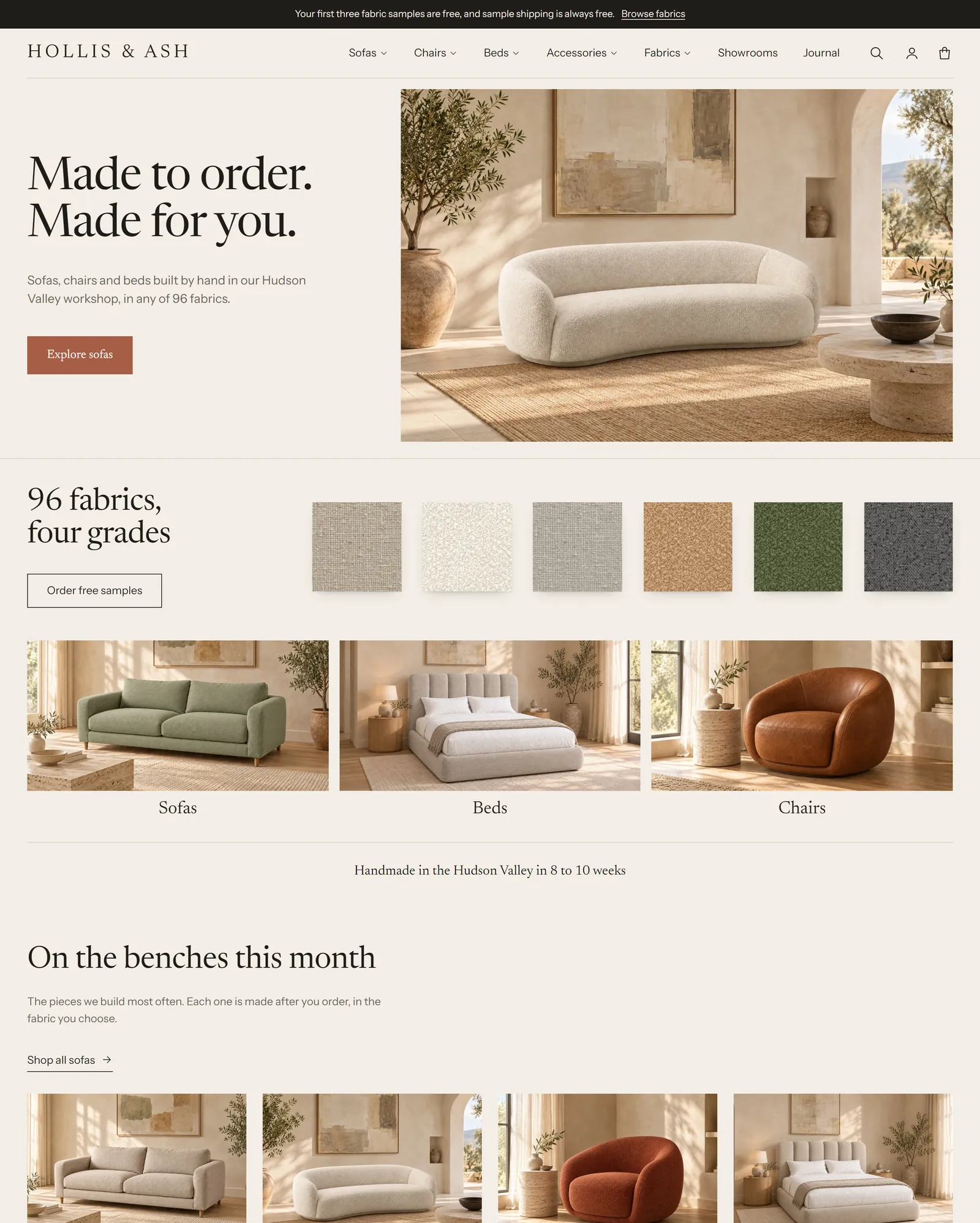
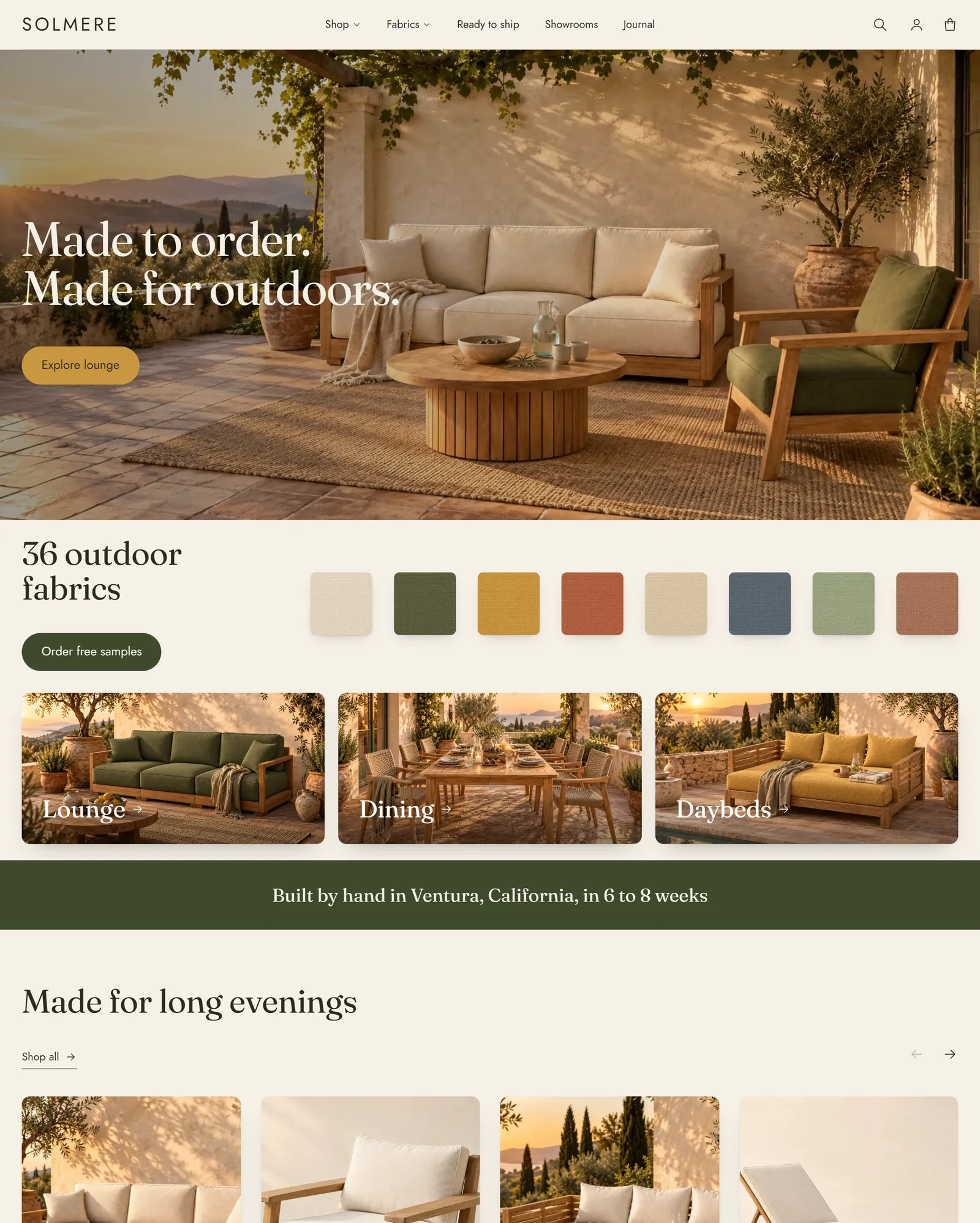
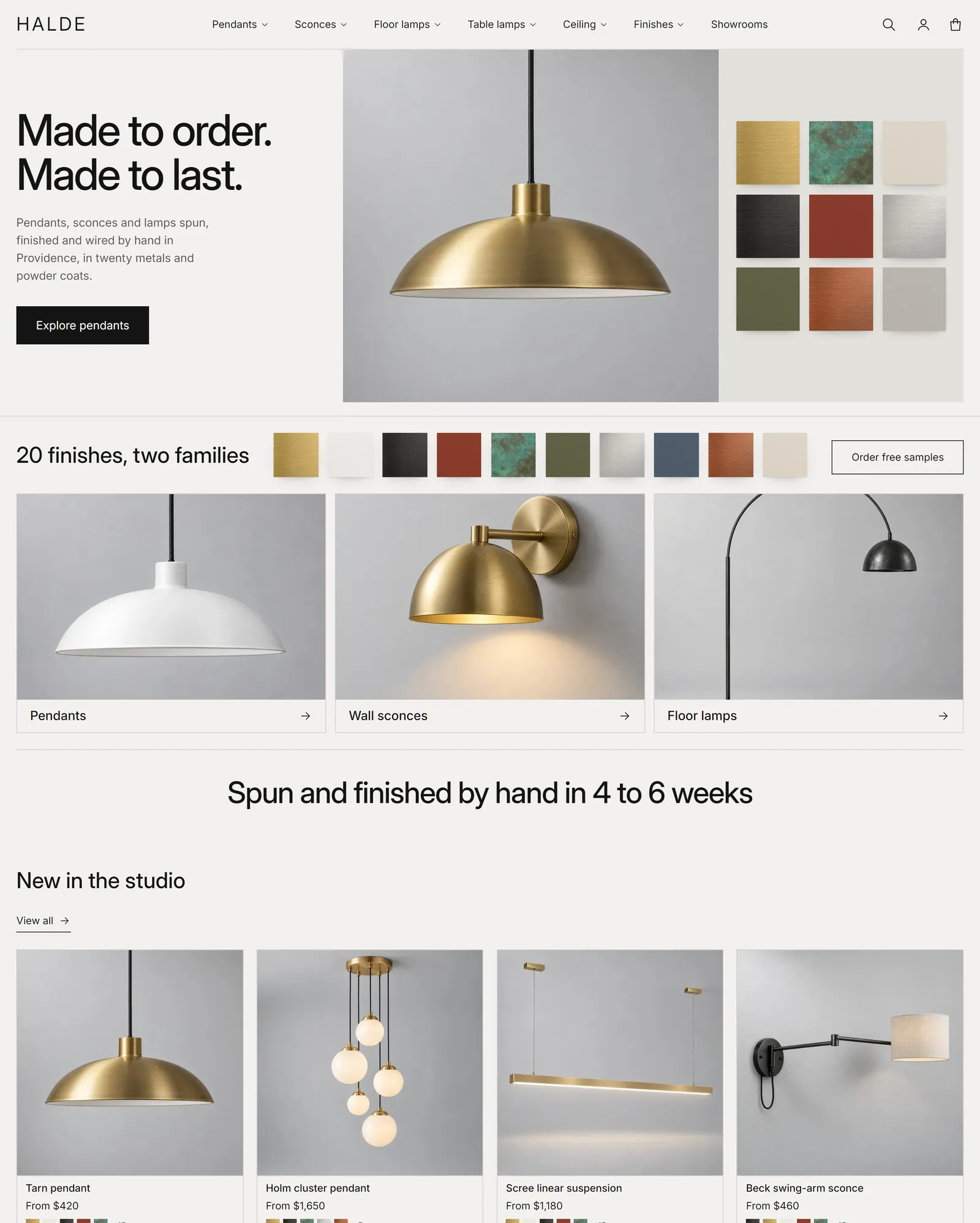
- Pick a style at the top of the listing: Weft, Veranda or Filament. Each style installs its own colors, fonts and page layouts. See Choose a style.
- Click Try theme. Shopify adds Weft to your theme library in Online Store > Themes. Your live store doesn't change.
- Click Customize to open the theme editor and set up your store.
- When you're ready, go back to Online Store > Themes, buy the theme if you haven't, and click Publish.
Choose a style #
Weft has three styles. They use the same sections and features but differ in colors, fonts, button shapes, spacing, image treatment and page layouts.
| Style | Look | Good for |
|---|---|---|
| Weft | Warm paper background, serif headings (Newsreader), a clay accent, square corners, split hero | Upholstery: sofas, beds, chairs |
| Veranda | Cream and olive, Fraunces headings, pill-shaped buttons, rounded image corners, full-width hero, gallery to the screen edge | Outdoor furniture and anything sold on a lifestyle photo |
| Filament | Off-white and stone, Inter throughout, black square buttons, framed product tiles, a hero with a material grid | Lighting and products with finishes and specifications |
Switch styles later #
In the theme editor, open Theme settings (the paintbrush icon) and choose a style under Theme style. This changes colors, fonts, buttons, spacing and image treatment. It doesn't change your page layouts, because those live in your templates. To start from another style's layouts, add that style from the Theme Store as a second copy of the theme.
Find your way around the theme editor #
- Sections are the large parts of a page, such as Hero, Featured collection or Product. Add them with Add section.
- Blocks sit inside sections, such as Heading, Button, Variant picker or Lead time. Add them with Add block.
- Theme settings apply to the whole store: colors, fonts, buttons, product cards, fabrics and samples, lead times and cart.
- Use the page menu at the top of the editor to switch between the home page, a product page, a collection page and so on.
Some sections show a short note in the editor when they have nothing to display yet, for example "Connect fabrics to show the fabric picker". The note has a Read the guide link to the matching page of these docs. Shoppers never see these notes.
Recommended order #
- Basics. Upload your logo in the Header section, set up the main menu in Online Store > Navigation, and check colors and fonts in Theme settings.
- Products and collections. Weft works with your existing products. Add products with options as usual. Options that change the price must be real variants.
- Lead times (tier 1). Show "Made to order, 6–8 weeks" per product, fabric or variant. Set up lead times.
- Fabrics (tier 2). Fabric picker with grades, the fabric library page and fabric samples. Set up fabrics, then samples and the fabric library page.
- Photos per fabric (tier 3). The gallery changes when a shopper picks a fabric. Set up fabric galleries.
- Extras. Complete the set, dimensions and lead time in order emails.
What works without setup (tier 0) #
| Feature | Where it comes from |
|---|---|
| Option buttons with price differences, such as "+$400" | Your product variants |
| Image and color swatches | Options connected to one of Shopify's category metafields, such as Color |
| The selected variant's image first in the gallery | Variant images |
| A lead time on every product page, in the cart and on the order | Theme settings > Lead times > Default lead time |
| Cart drawer or cart page, order note, dynamic checkout buttons | Theme settings > Cart and the Cart section |
| Mega menu, predictive search, filters and sorting | Your menus, products and the Search and Discovery app |
Before you edit theme code #
Everything in these docs works in the theme editor and the Shopify admin, without code. If you or a developer decide to change theme files:
- Go to Online Store > Themes.
- Next to Weft, click ... and then Duplicate.
- Edit the copy, not the live theme.
Code changes aren't covered by support, and edited files can stop theme updates from installing automatically. See the support policy.