Photos per fabric
Tier 3. When a shopper picks a fabric, the product gallery swaps to photos of the piece in that fabric. Shared images, such as a dimension drawing or a leg detail, stay in the gallery for every fabric. The fabric's own close-ups can follow at the end. The full-screen viewer shows the same set.
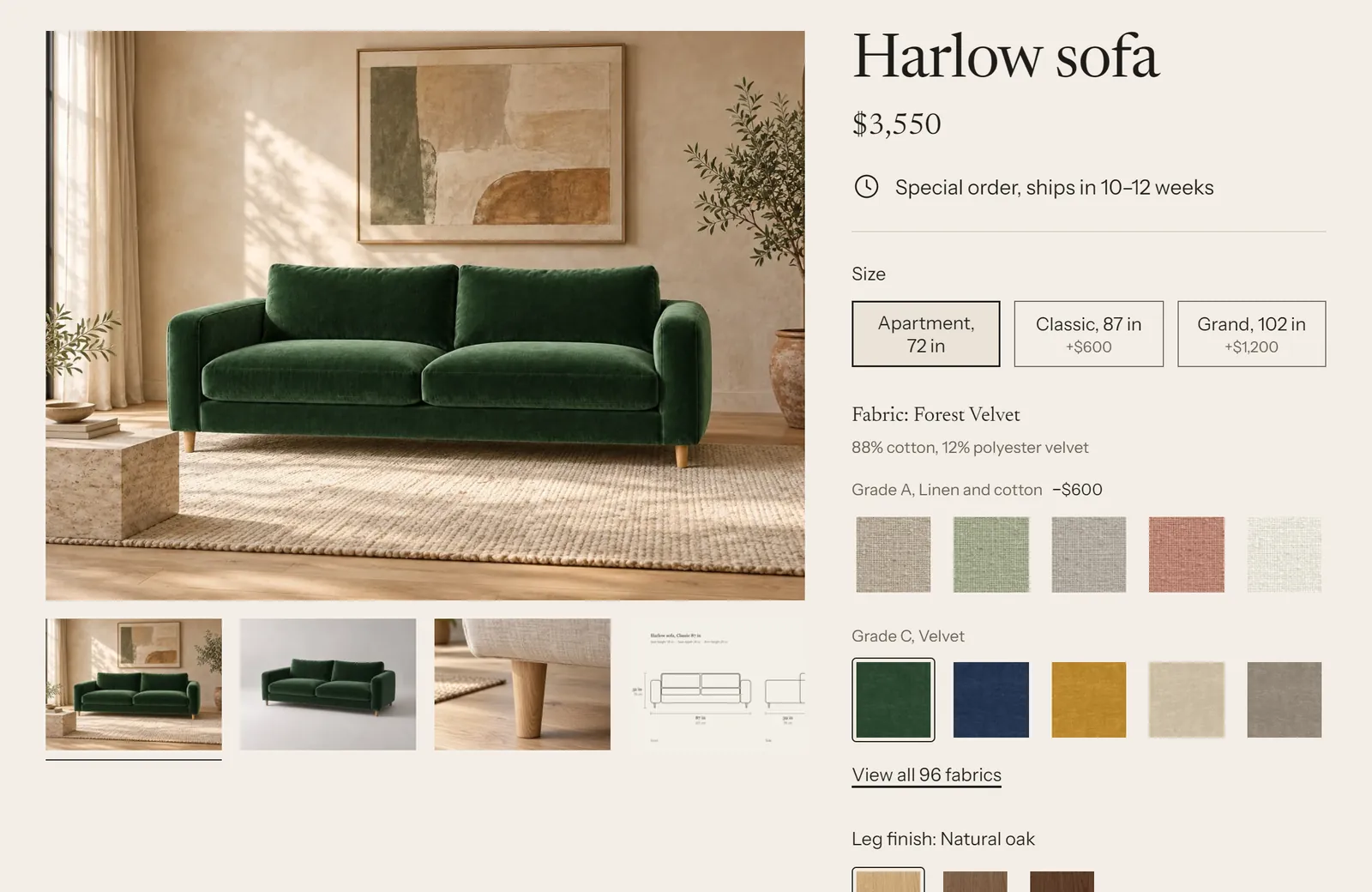
How the gallery picks its photos #
For the selected fabric, the Gallery block uses the first option that applies:
- A fabric gallery entry for this product and fabric, from the product's
custom.fabric_galleriesmetafield. Its images come first, then the product's Shared images (custom.shared_media). - Alt-text tags, if you turn on Match product images to fabrics by alt-text tag in the Gallery block. Product images whose alt text contains the fabric's tag come first, then all untagged product images.
- The variant image of the selected variant first, then the rest of the product's media.
In every case, if Add the selected fabric's close-ups is on, the fabric entry's Gallery images are added at the end.
Fabric gallery images are files, not product media, so they don't count toward Shopify's limit on media per product.
Option A: fabric gallery entries (recommended) #
Create the definitions once #
- Settings > Metafields and metaobjects, metaobject definitions, Add definition.
- Name:
Fabric gallery. Check the type readsfabric_gallery. Fields:
Field name Type Key Fabric Metaobject, one entry, Fabric, required fabricImages File, list of files, images only, required imagesLabel Single line text, one value label- Check that Label is the display name (it's the first text field, so Shopify picks it by default). Tick Storefronts under Access. Save.
- Settings > Metafields and metaobjects > Products > Add definition: name
Fabric galleries, keycustom.fabric_galleries, type Metaobject, List of entries, Fabric gallery. Tick Storefronts. Save. - Same place: name
Shared images, keycustom.shared_media, type File, List of files, accepted file types Images. Tick Storefronts. Save.
For each product #
- Upload the photos in Content > Files (or upload them from the entry in the next step).
- Go to Content > Metaobjects > Fabric gallery and click Add entry.
- Fabric: the fabric. Images: the photos of this product in this fabric, in order. Label: for example "Harlow sofa / Oat Linen". Save.
- Repeat for each fabric you have photos of.
- Open the product. In the Metafields card, set Fabric galleries to the entries you made, and Shared images to the photos every fabric should show (drawings, details). Save.
Fabrics without an entry fall back to option 3: the variant image, then the product media. You don't need photos of every fabric.
Option B: alt-text tags #
For stores that already keep all fabric photos on the product.
- Find the fabric's handle: open the fabric entry in Content > Metaobjects > Fabric. The handle is shown on the entry, for example
oat-linen. - In the product's media, edit each photo's alt text and add the handle in square brackets, for example
Harlow sofa, side view [oat-linen]. - In the theme editor, click the Gallery block in the Product section and turn on Match product images to fabrics by alt-text tag.
Weft removes the tag from the alt text it shows shoppers and screen readers. Images without any tag show for every fabric.
Gallery block settings #
| Setting | What it does |
|---|---|
| Image shape | Landscape (4:3), Wide (3:2), Square, Portrait (4:5), or Original (no cropping), which keeps every image whole using the shape of the first image. |
| Show thumbnails on desktop | A thumbnail row. On phones the gallery shows a counter and arrows instead. |
| Thumbnail position | Below the image, or Over the image. |
| Add the selected fabric's close-ups | Adds the fabric entry's Gallery field at the end. |
| Match product images to fabrics by alt-text tag | Option B above. Off by default. |
The Gallery block is part of the Product section and can't be removed. Two settings on the Product section change its size: Gallery width on desktop and Gallery position on desktop.
Troubleshooting #
- The gallery doesn't change when I pick a fabric. Check that the fabric gallery entry points to the same fabric entry the option uses, and that the product's Fabric galleries metafield lists the entry.
- The gallery shows only one image. Option 3 shows the variant image first, then the product media. If the product has a single image, that's all there is.
- Alt-text tags don't work. The tag must be the fabric's handle, not its name:
[oat-linen], not[Oat Linen].