Complete the set
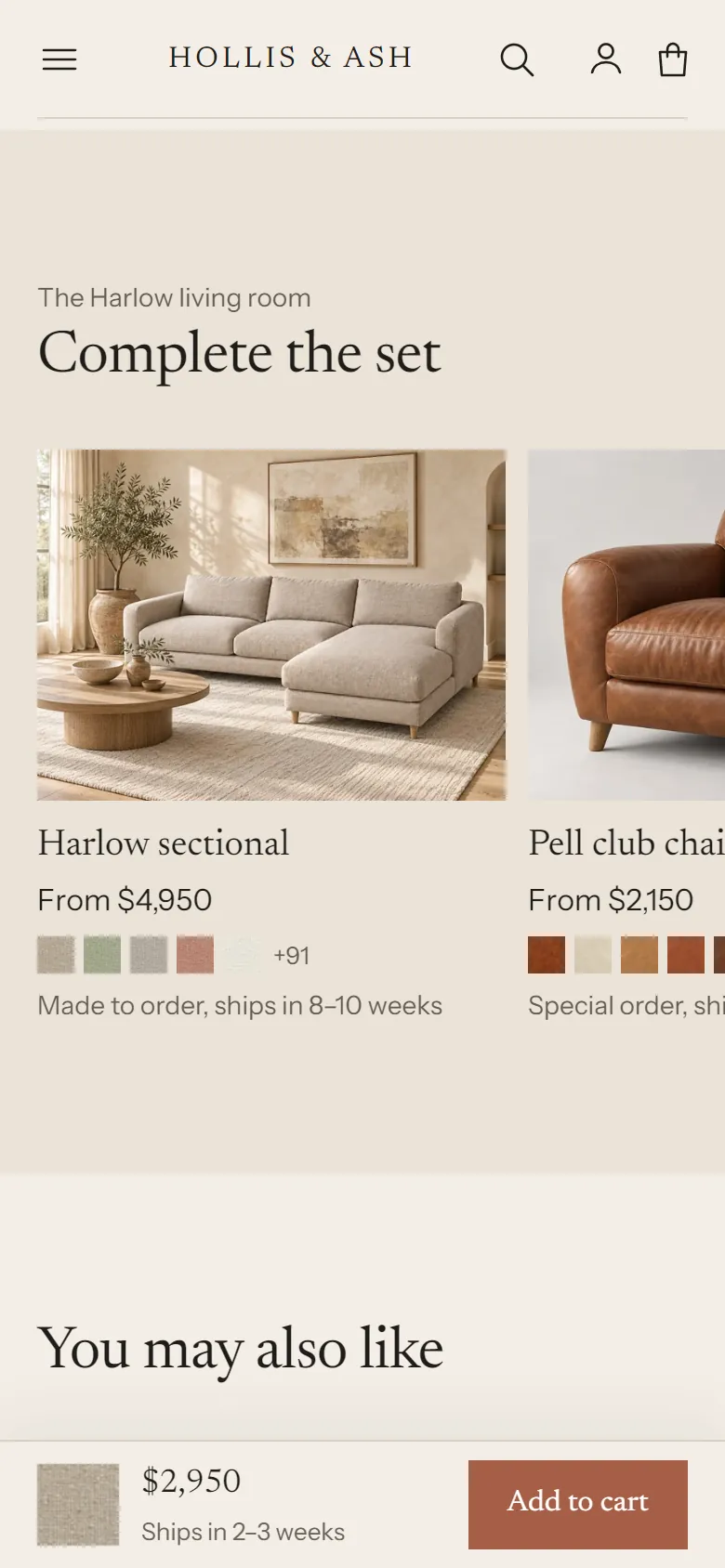
The Complete the set section shows the other products in a product's group, for example the matching chair, ottoman and bench under a sofa. You make one group entry that lists the products, and each product points to that group. Adding a product to the set is one edit.
Set it up #
Create the definitions once #
- Settings > Metafields and metaobjects, metaobject definitions, Add definition.
- Name:
Product group. Check the type readsproduct_group. - Fields: Name (Single line text, one value, required, key
name) and Products (Product, list of products, keyproducts). - Check that Name is the display name. Tick Storefronts under Access. Save.
- Settings > Metafields and metaobjects > Products > Add definition: name
Product group, namespace and keycustom.product_group, type Metaobject, One entry, Product group. Tick Storefronts. Save.
Create a group #
- Go to Content > Metaobjects > Product group and click Add entry.
- Name: for example "The Harlow living room". Shoppers can see it above the heading.
- Products: pick every product in the set. The order here is the order of the cards.
- Save.
- Open each product in the group and set its Product group metafield to this entry. Save.
A product can belong to one group.
Section settings #
The section is on the default product template. To add it to another template, choose Add section > Complete the set on a product page.
| Setting | What it does |
|---|---|
| Heading | "Heading text, with the group name above it" shows the group name as a small line above Heading text. "Group name" uses the group name as the heading. |
| Heading text | Default "Complete the set". |
| Text | Optional text under the heading. |
| Include the current product | Off: shows the other products only. On: shows the whole group. |
| Products to show | 2 to 12. |
| Columns on desktop | 2 to 5. The row uses fewer columns when the group has fewer products. |
| Color scheme, Top padding, Bottom padding | Section appearance. |
Without a group, the section takes no space on the live store. In the theme editor it shows a note explaining what's missing.