Fabric library page
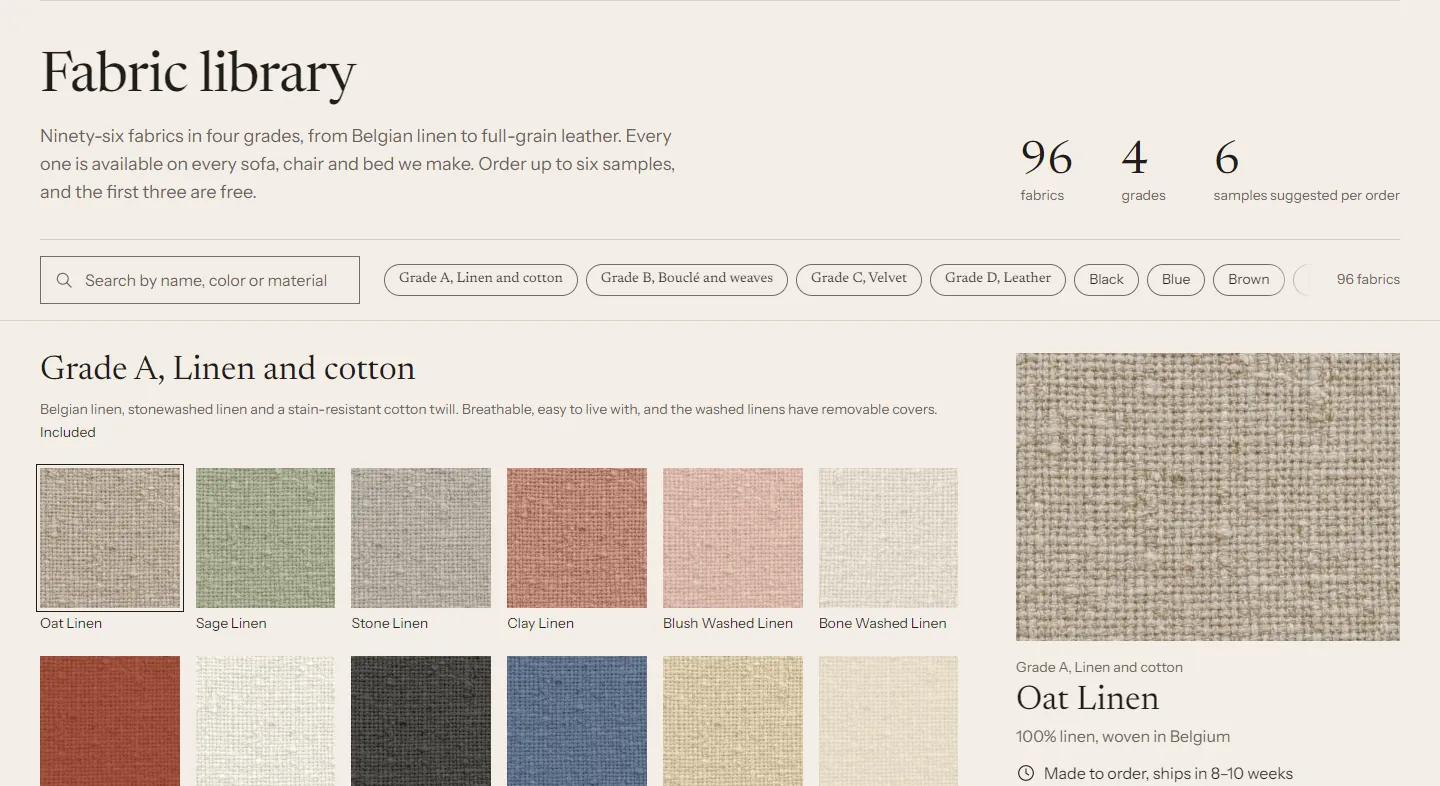
The fabric library is a page that lists every fabric entry in your store, grouped by grade. Shoppers can search, filter by grade, color and feature, open a large preview and order samples. It reads the same fabric entries as the product pages, so there is nothing extra to keep up to date.
Set it up #
You need the Fabric definition and some fabric entries from fabrics. Grades and a sample product are optional.
- In your admin, go to Online Store > Pages and click Add page.
- Title: for example
Fabric libraryorFabrics. - Content: one or two sentences of introduction. The section can show it at the top.
- Under Theme template, choose fabric-library.
- Click Save.
- Add the page to your main menu in Online Store > Navigation.
To edit the layout, open the theme editor, choose Pages > fabric-library in the page menu at the top, and click the Fabric library section.
What it shows #
- A heading with up to three counts: fabrics, grades, and samples suggested per order (from Suggested samples per order). The words follow Theme settings > Fabrics and samples > Swatch wording, so a finish library reads "20 finishes · 2 families". The grade count shows when there are at least two grades.
- A search field and filter chips for grades, colors (Color family) and features.
- One group per grade, in the grade's Sort order, with the grade's description, price note and lead time. Fabrics without a grade come last under Heading for fabrics without a grade.
- Within a grade, fabrics follow the fabric's own Sort order field when you add one (see definitions), then their names. The preview opens on the first fabric of the first grade, or on the one you name in Fabric to preview first.
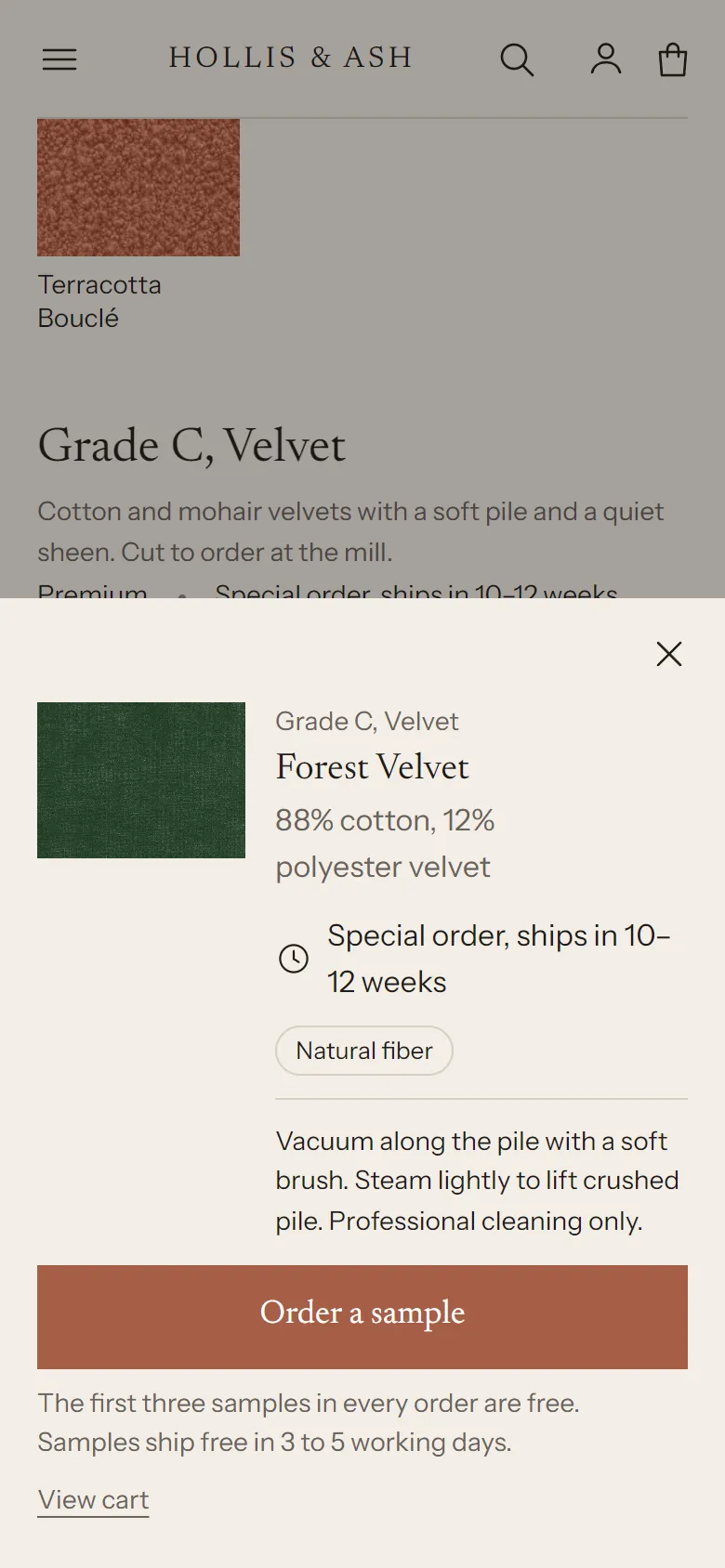
- A preview of the selected fabric: large image, grade, composition, lead time, features, care, and the sample button. On desktop the preview stays in view while the list scrolls. On phones it opens as a sheet from the bottom.
- An "In cart" label on fabrics whose sample is already in the cart.
Section settings #
| Setting | What it does |
|---|---|
| Heading | Leave empty to use the page title. |
| Show the page content as the introduction | Uses the text you wrote on the page in the admin. |
| Introduction | Used when the page has no content or the option above is off. |
| Fabrics loaded at a time | 50 to 250. The page first loads this many fabrics, then fetches the rest in the background. All fabrics show either way. Lower it if the first view feels slow with a very large library. |
| Show grade filters | Shows a chip per grade next to the color and feature chips. |
| Heading for fabrics without a grade | Default "More fabrics". |
| Show counts under the heading | The number of fabrics and grades, and the suggested samples per order. |
| Order within each grade | Sort order field, then name uses the fabric's optional sort_order field. Name ignores it. |
| Fabric to preview first | A fabric's name, for example Oat Linen. The preview opens on it instead of the first fabric in the list. |
| Grades that aren't fabrics > Grades to leave out of the counts | Grade names or handles, separated by commas, for example Powder coats. Their entries don't count as fabrics, and the grades don't count as grades. For a grade whose name contains a comma, use its handle (grade-d). Leave it empty to use the same setting in Theme settings > Fabrics and samples, which also sets the wording on product pages. |
| Entries in these grades | Show in the library keeps them in the list, which then counts in neutral words ("40 swatches"). Hide from the library leaves them out of the page. |
| Show sample buttons | Needs a sample product in Theme settings > Fabrics and samples. |
| Button label | Default "Order a sample". |
| Note under the button | Shown below the sample button, for example how and when samples ship. Empty by default. |
| Color scheme, Top padding, Bottom padding | Section appearance. |
Notes #
- The library lists every Active fabric entry of the type in Theme settings > Fabrics and samples > Fabric metaobject type, including fabrics no product uses yet. Set a fabric to Draft to hide it.
- If your fabric entries also hold finishes, such as powder coats or wood stains in their own grade, list that grade in Grades to leave out of the counts. A store with 36 fabrics in three grades and four powder coats then shows "36 fabrics · 3 grades". Set the grade in Theme settings > Fabrics and samples > Grades to leave out of the counts as well, so a product whose list mixes fabrics and powder coats says "View all 40 swatches" instead of "View all 40 fabrics".
- Large libraries are fine. The page loads in parts and merges them into the right grade groups, so a library of 400 fabrics still shows complete groups.
- Without JavaScript, a "More fabrics" link at the bottom loads the next part.
- The editor shows "Add entries to the fabric metaobject to fill the fabric library" when there are no entries yet.