Fabric samples
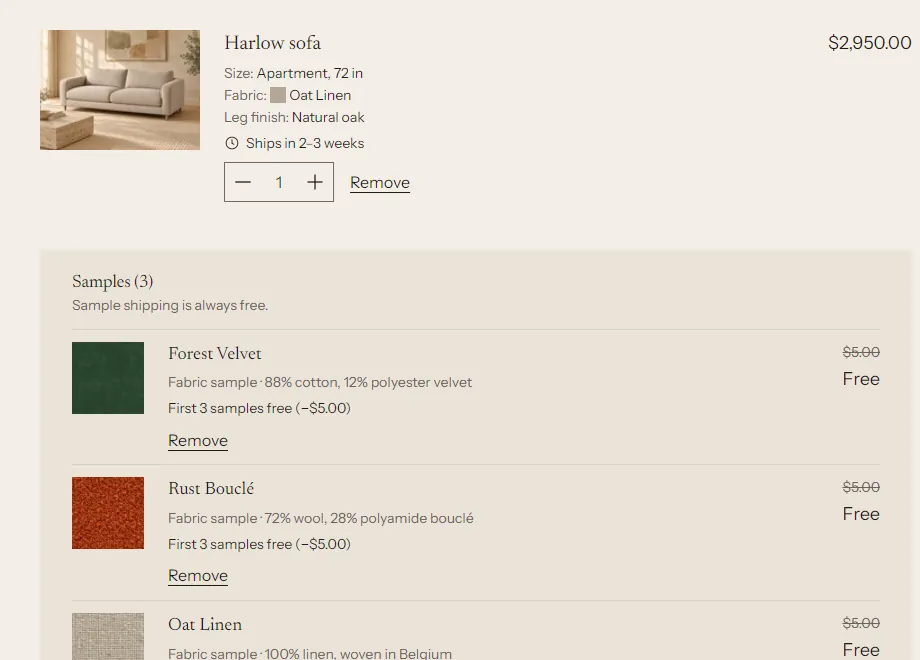
Tier 2. Shoppers can add a sample of any fabric to the cart without leaving the page. Samples sit in their own group in the cart, headed "Samples (3)", with a note you write, for example how and when samples ship.
Samples are ordinary variants of one hidden product, so they go through your normal checkout, inventory and fulfillment.
What you need first #
- Fabric entries and the
custom.fabricsdefinition from fabrics. - Products with their Fabric option linked. The sample button on the product page sits in the fabric picker, so it appears only on products that use the picker.
1. Create the sample product #
- Go to Products and click Add product.
- Title:
Fabric samples(shoppers see this on the order). - Price: the price of one sample, for example
$0.00or$4.00. See pricing below. - Add one option, named
Fabric, and link it to Fabrics (custom.fabrics) the same way as on your products: click the connect icon next to the option name and choose Fabrics. Select every fabric you offer samples of. - The Fabric option must be the product's first and only option.
- Under Shipping, keep This is a physical product on and enter a weight, for example 0.05 kg.
- Inventory: turn off Track quantity, or track it if you count your swatch stock.
- Set Status to Unlisted. Unlisted products can be bought but don't appear in collections, search or recommendations.
- Don't add the product to any collection. Click Save.
Because the option is linked to the same fabric entries, each sample variant has the fabric's exact name. When you add a fabric later, edit this product's option and select it here too.
2. Choose the product in the theme #
- In the theme editor, open Theme settings > Fabrics and samples.
- Sample product: choose Fabric samples. Sample buttons stay hidden until you do.
- Suggested samples per order: a shopping guide for customers, 1 to 20. Default 5. See suggested samples per order.
- Sample note in the cart: shown under the samples in the cart, for example "Samples ship free within 3 working days." Empty by default.
- Click Save.
The button text is a setting on each place that shows it: the Variant picker block (Button label, default "Order a sample") and the Fabric library section. If your samples are free, you can say so, for example "Order a free sample".
3. Ship samples free #
Without a separate shipping profile, an order with only samples is charged your normal shipping rate. To ship samples free:
- Go to Settings > Shipping and delivery.
- Under Custom shipping rates, click Create new profile.
- Name:
Fabric samples. Click Add products and choose Fabric samples. - Click Create zone (or add your existing zones), choose the countries you ship samples to, and click Add rate.
- Rate name:
Free sample shipping. Price:$0.00. Click Done, then Save.
If a shopper orders a sofa and samples together, they pay the sofa's shipping and nothing extra for the samples.
Pricing #
All samples free #
Set the sample price to $0.00 and set up free sample shipping. An order with only samples then totals $0.00, and checkout says "Your order is free. No payment is required." The shopper still enters a shipping address.
Paid samples #
Set the price, for example $4.00. Change the button label so it doesn't say "free".
The first N samples free #
This recipe makes, for example, the first 3 samples free and charges for more. It uses a standard automatic discount.
- Set the sample price, for example $4.00.
- Go to Discounts and click Create discount, then Amount off products.
- Method: Automatic discount. Title:
First 3 samples free. Shoppers see the title in the cart and at checkout. - Discount value: Fixed amount, set to the number of free samples times the sample price. For 3 samples at $4.00, enter
$12.00. - Tick Only apply discount once per order. Without it, every sample line gets $12 off.
- Applies to: Specific products, and choose Fabric samples.
- Minimum purchase requirements: none.
- Combinations: tick Order discounts and Shipping discounts if you use them. Leave Product discounts unticked.
- Set the start date and click Save.
Result with $4.00 samples and $12.00 off once per order:
| Samples in the cart | Shopper pays |
|---|---|
| 1 | $0.00 |
| 3 | $0.00 |
| 5 | $8.00 |
| 2 samples and a sofa | The sofa only. The samples are still free. |
Shopify spreads the discount evenly over the sample lines. With 5 samples the cart shows each one at $1.60 instead of "3 free, 2 at $4". The total is correct.
Suggested samples per order #
Theme settings > Fabrics and samples > Suggested samples per order is a shopping guide for customers, not a rule. The fabric library shows the number ("5 samples suggested per order"). When a shopper has that many samples in the cart, the sample buttons pause and show: "You have picked 5 samples, the suggested number per order. Remove one from your cart to choose another."
Checkout doesn't check the number. A shopper who changes their cart some other way, for example through an app or an old browser tab, can still check out with more samples. If you need a hard limit, a Shopify Function (cart and checkout validation) can enforce one. Only an app can install a Function; a theme can't.
Different names on the sample product #
If your sample product's option values don't match your fabric names (for example "Oat Linen swatch"), point each fabric at its sample: open the fabric entry in Content > Metaobjects > Fabric and choose the variant in Sample variant. Weft uses that variant first, then falls back to matching by name.
Where sample buttons appear #
| Place | Setting |
|---|---|
| Product page, under the fabric picker | Variant picker block: Show sample buttons, Button label |
| Fabric panel ("View all fabrics"), in the preview | Same as above |
| Fabric library page, in the preview | Fabric library section: Show sample buttons, Button label, Note under the button |
| Cart | Samples are grouped under "Samples (3)" with Sample note in the cart |
Troubleshooting #
- No sample buttons anywhere. Choose the product in Theme settings > Fabrics and samples > Sample product.
- No sample button on one product. That product doesn't use the fabric picker (see fabrics), or the selected fabric isn't an option value on the sample product.
- The button adds the wrong fabric. Two fabrics share a name, or the sample product's first option isn't the fabric option.
- Samples are charged shipping. The Fabric samples product isn't in a shipping profile with a $0.00 rate for the shopper's country.
- The discount doesn't apply. Check that it's active, applies to the Fabric samples product, and that Only apply discount once per order is ticked.